
This feature allows your users to drill down into their settings even further, and select specific cities. This can be very powerful when someone would like to track a specific city but doesn't want to get bogged down with the rest of the county's information. It can also be useful for someone who needs to monitor at the state level but would like to focus on just larger metropolitan areas (again cutting out the rest of the smaller municipalities in those counties).
This feature is available to use on your settings page (to save your preferences), feed/overview (for one-time use), or in the research tab.
How to select specific cities:
- Navigate to a page that allows you to adjust your filters either through the Settings, Feed, or Overview pages.
- Once you are there, navigate to the section that displays the locations that you are currently searching within.
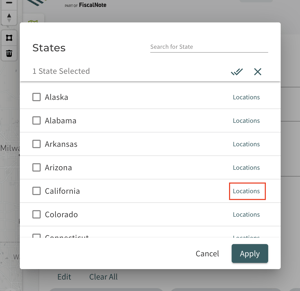
- When you want to edit any of your locations, the first pop-up that will appear will display all of the states that your organization is subscribed to.
- Next, click 'locations' on the right-hand side of the state's list on the state that you want to take a deeper dive into.
- Next, what you see is a list of the counties within that state. If you know which county the specific municipality resides in, scroll until you come upon the name. Otherwise, use the 'search' bar to type the name of the municipality.
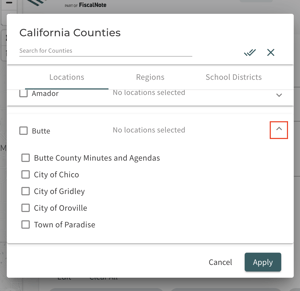
- Then, click on the down arrow to display all of the municipalities within that county Curate is actively searching in.
- Select the check box next to the municipality name(s), and select the "Apply" button.
Comments
Article is closed for comments.