
Using this feature can help organizations with multiple users create and share the same settings. This also is a quick way to update your discussions on your Feed, and Overview pages as well as your emails within the Settings Page.
You can import or export a filter profile through the Feed, Overview or Settings page (see screenshots below).
Please note, that applying a filter profile token to the Feed or Overview pages is a one-time application. If you apply the filter profile token within the Settings, you can save that profile for continued use going forward.
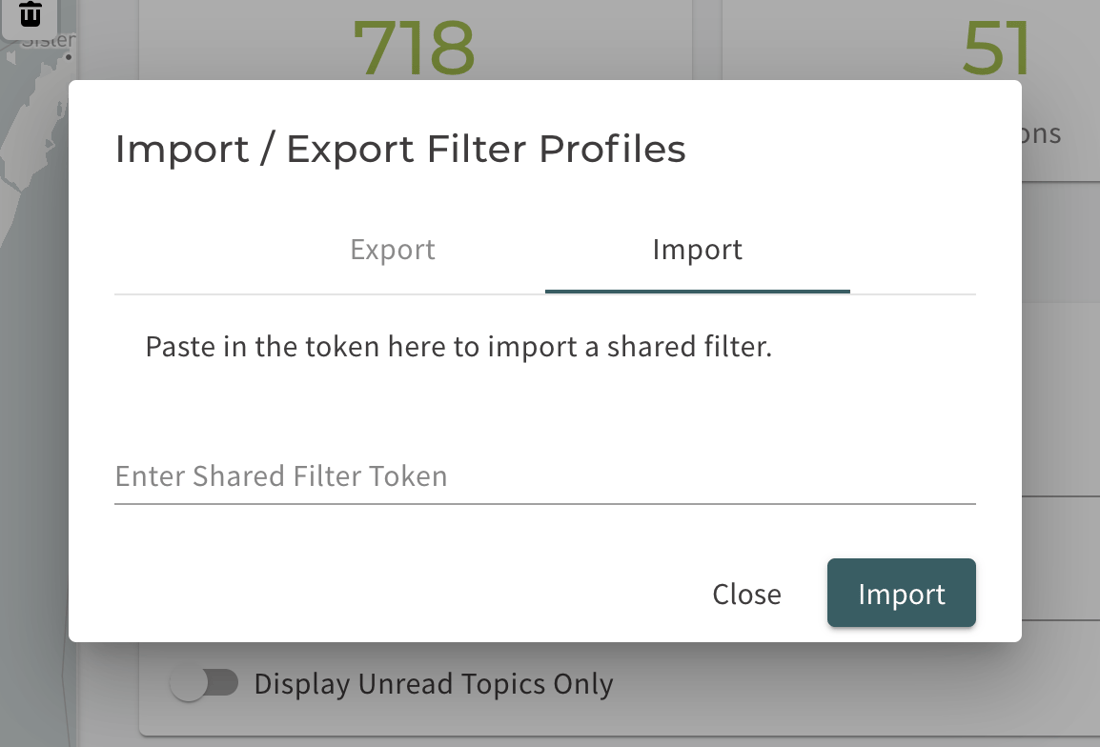
When you select the "import/export filter" shortcut, a pop-up will appear. If you wish to share a filter profile with another user, select "Export". If you wish to import a filter profile token from another user, select "Import".
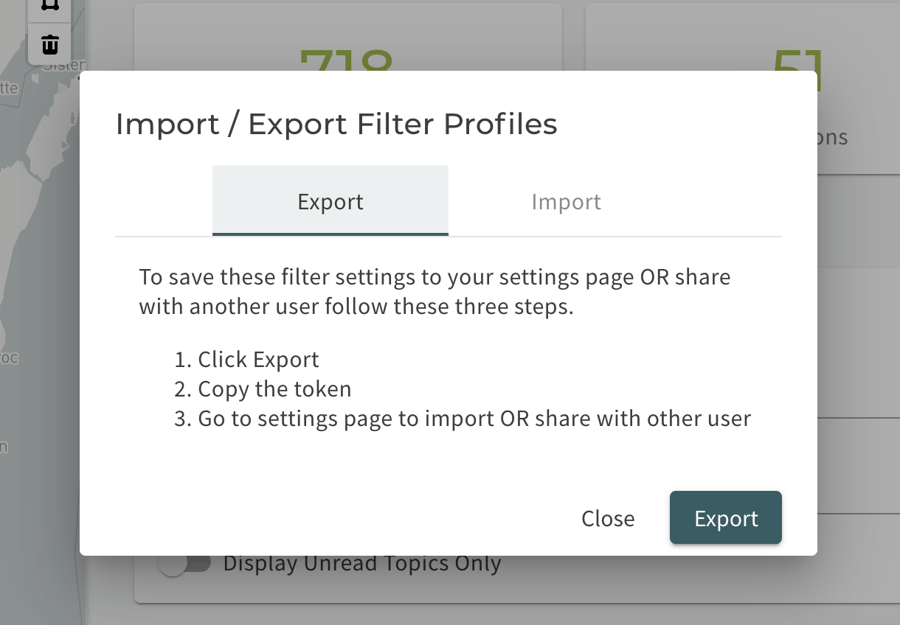
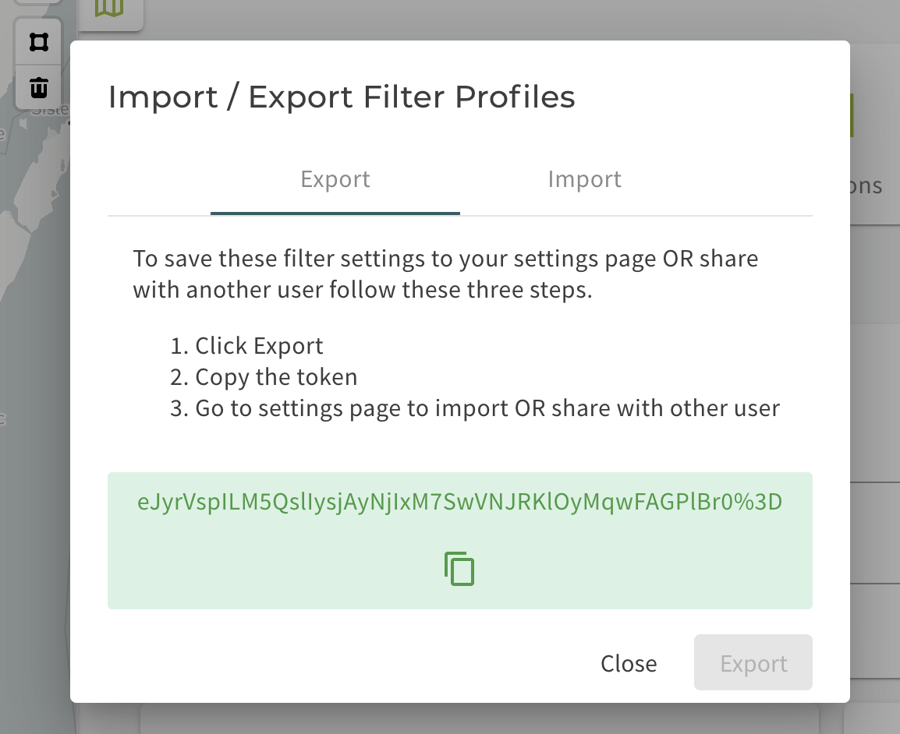
TO EXPORT: Follow the steps in the screenshot below and copy the token. You can share this with any other Curate user.
TO IMPORT: Select "Import" on the pop-up. You will then be prompted to past the token of the shared filter profile.
Comments
Article is closed for comments.