
Favoriting documents allows you to keep track of a specific document by using folders within Curate.
We support two types of folders: Private - available only to the logged-in user, and Public - available to everyone at the organization. Anyone at your organization can add snippets to public folders and when they do, you’ll see the name of the person who added it as well as a timestamp.
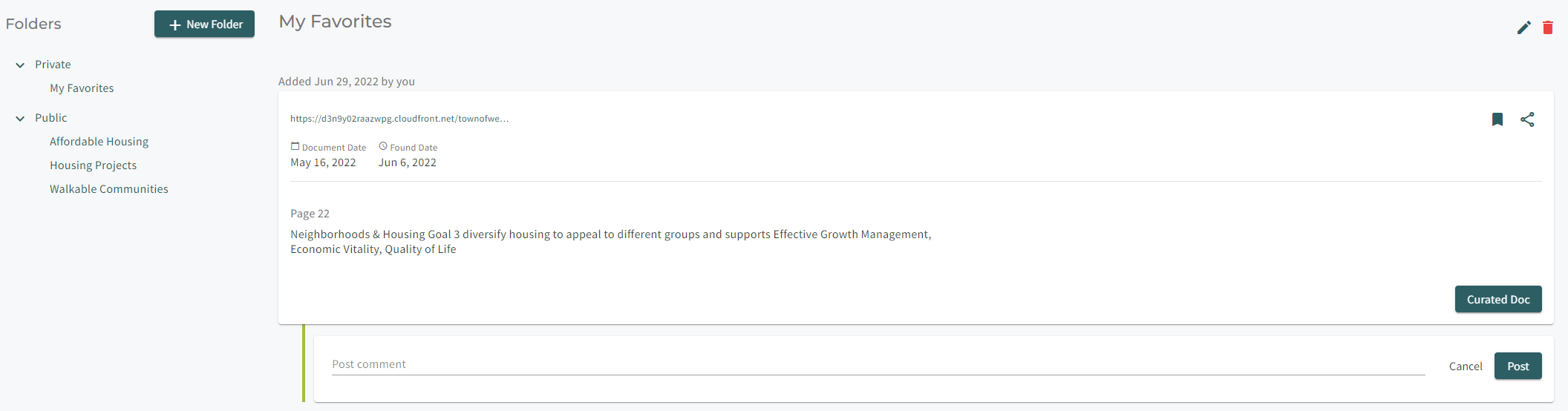
From here, you can collaborate with others via tagging and comments on the snippets. These comments will show within Favorites as well as on the Feed. You’ll be able to see public comments from any folder the document is in that you have access to, including the case where the document lives in multiple folders. By default, we display the two most recent comments on a snippet, but if there are more, you’ll have the option to expand all.
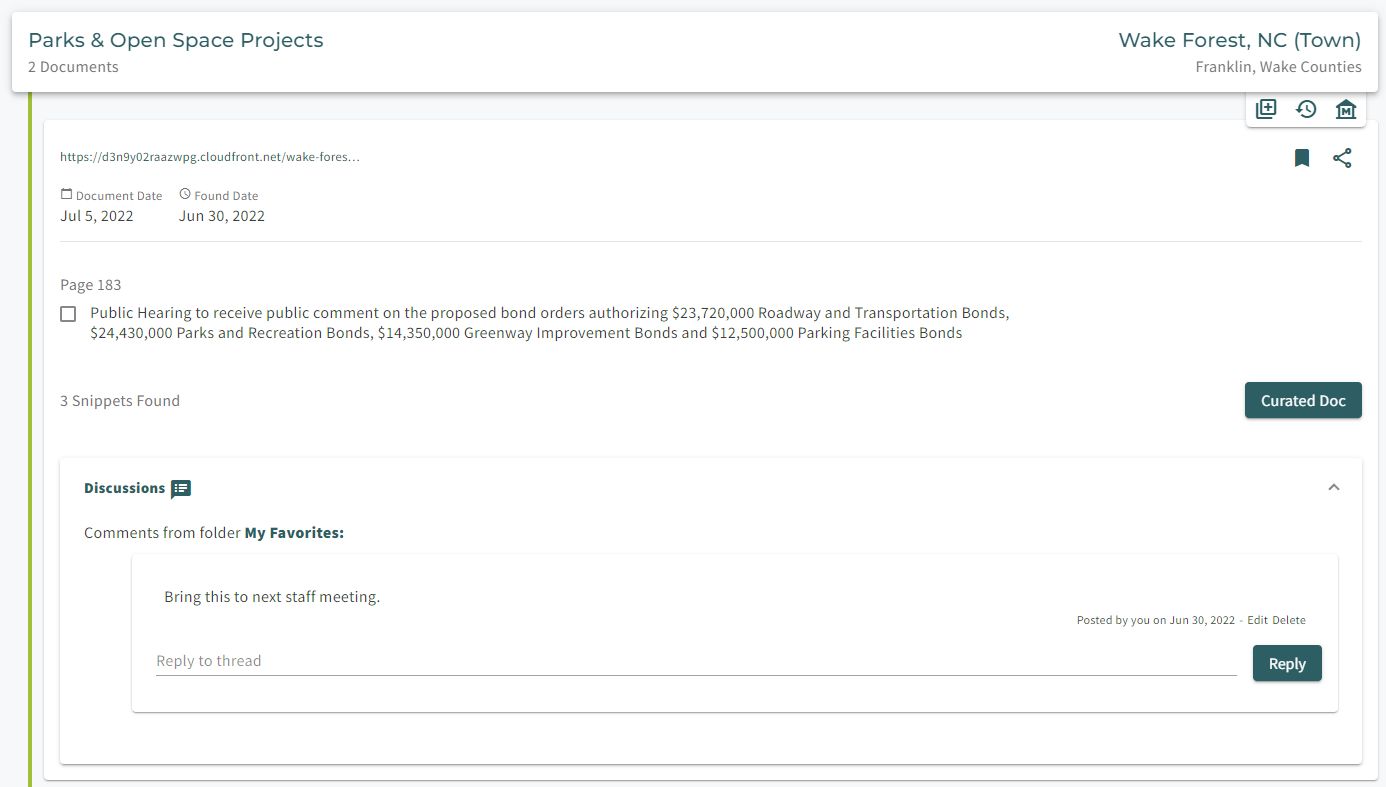
Within Favorites, you can sort by added/favorited date, document date, found date, and location and you can also share snippets or jump to the Curated doc, just as you could on the Feed.
How to Favorite:
- Navigate to a snippet within the Feed that you want to favorite.
- Select the favorite icon next to the share button:

- A pop-up will appear asking where you want to save the favorite to. You can choose to save it within an existing folder (private or public) or create a new folder by clicking the "+" icon.
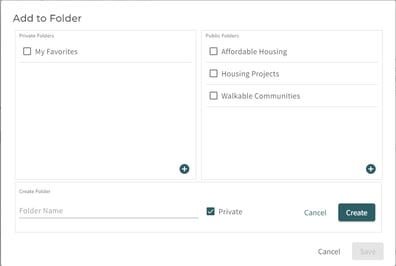
- Once you have selected one or more folder(s), hit the “Save” button.
How to View Favorited Documents:
- Navigate to the new Favorite activity using the top navigation bar.
- Here, you'll see your own private folders as well as any organization-wide public folders.
- To remove a snippet or add it to more folders, simply click the Favorite icon again, make your adjustments, and click save. Note that if you remove a document from a public folder, it will remove it for everyone and any discussion comments on the snippet will be removed.
Check out our course on organizing your favorites and folders for success.
Comments
Article is closed for comments.